The contact card is the place where everything related to a single user comes together: personal data, contact details, activities, responses, data tables, tag, audience, web tracking, and much more.
It’s the view that helps you understand who the contact is, how they interact with your content and which actions they have taken over time, offering a complete and immediate overview.
With the contact card, you can explore every aspect of the user and manage it centrally, without having to navigate across different sections of the database.
Key information
At the top of the contact card, you immediately find the contact’s essential information. This area helps you recognize them at a glance and get an immediate sense of their activity level.
In this area, for example, you can see:
first and last name, if available
contact status, such as Subscribed
primary contact details
date the contact was imported into the database
engagement level, such as "Clicker" or "Out of recency"
On the right-hand side of the page, if the contact has received communications on different channels (e.g. email and SMS), you will find a card showing the engagement levels for each channel, the previous value and the date on which it changed.
Just below the header, at the top of the page, you’ll find the contact card tabs. Each tab collects specific information and helps you navigate the profile in a clear, fast way.
Some tabs are always available, while others appear only under certain conditions. Their availability depends, for example, on:
the permissions assigned to the user
active integrations with external applications or connectors
contact extensions linked to additional data tables
This way, the contact card dynamically adapts to your organization’s data model and shows only the information that is truly relevant and available.
Contact overview
The Contact tab provides a high-level overview of the contact profile and brings together, in a single view, the most useful information to understand their identity, behavior, and relationship with your communications.
Within this tab, you’ll find several cards that allow you to:
view personal and contact details and the contact fields available in the database, including business fields
check for conversions and relevant actions
quickly assess the performance of the emails you’ve sent
follow a timeline of the contact’s activities and see how they interacted with your communications, landing page, and content
view interests through the tag cloud, where larger tag indicate more interactions and more visible tag reflect more recent activity, while older ones appear more faded
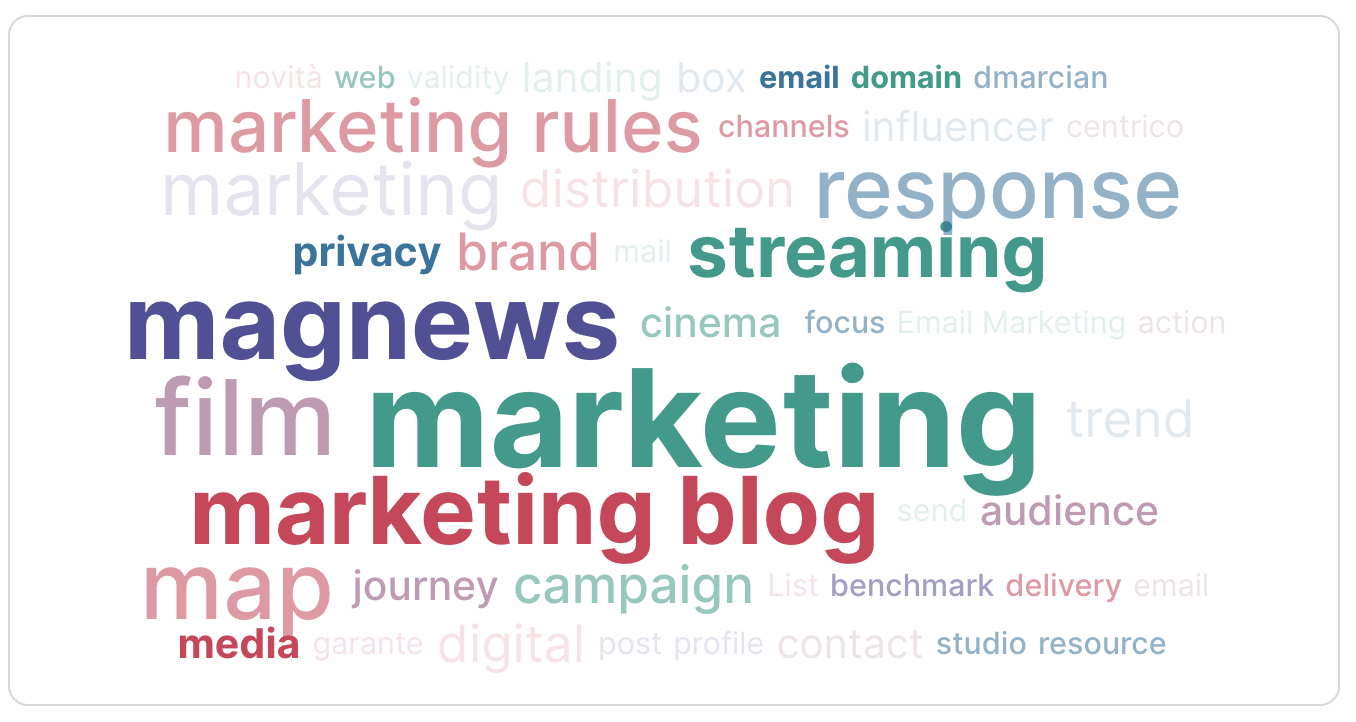
The goal of the Contact tab is to give you immediate and complete context, so you can understand who the contact is, how they interact, and how engaged they are, without navigating across different sections.
Data tables and contact extensions
The contact card can show one or more additional tabs dedicated to the database data tables.
Their availability depends on how many data tables have been created and which contact extensions are enabled. In fact, for each data table associated with the contact, the platform automatically creates a dedicated tab, which provides an aggregated view of the information stored in that table.
For example, if the database includes a data table called “Orders,” the contact card will show the Orders tab, which lists all orders associated with that contact, with columns such as order ID, price, purchase date, products, and other relevant fields.
Each linked data table is therefore represented by its own tab, offering an immediate and structured way to consult the extended data in the user profile. To learn what data tables are and how to use them, visit the dedicated page.
Responses and submissions
The Responses tab collects, in a single table, all submissions associated with the contact. Here you’ll find responses submitted through landing pages and messages on site, both complete and partial, with the date, status, and originating journey.
The table lets you filter responses over time and quickly understand how often the contact has interacted with forms, how active they are, and what information they provided.
This way, you can review response details directly from the contact card without searching for individual assets one by one, or jump straight to the asset starting from the response.
Contact interests
The Tag tab gives you a structured view of the contact’s interests and behaviors. The information is organized into three tables:
a summary of interactions coming from communications and the web, including date and channel
a detailed view of clicks and opens tied to communications and content
a table dedicated to visits on web tag
This way, you can read the contact’s interests in a more in-depth and contextual way, and use this information to refine segments and messages. To learn more, visit the page dedicated to tags.
Audience it belongs to
The Audience tab displays the audiences to which the contact belongs, distinguishing between dynamic and static audiences.
Dynamic Audiences
The first list shows the dynamic audiences, which are based on rules and filters.
To view the dynamic audiences associated with the contact, click the View audiences button: the system performs the calculation and displays the updated list of audiences to which the contact belongs.
The table lists, for each dynamic audience, the Audience name, the Database it belongs to, and the Audience ID.
This allows you to quickly verify which dynamic segments the contact belongs to, based on the defined conditions.
Static Audiences
Just below, you’ll find the list of static audiences sets of contacts created manually or via imports.
Here, you can view the list of static audiences to which the contact belongs and manage their association. If the contact is not part of any audience, you can add them directly using the “Add to Audience” action available via the more button on the page. If you don’t have any, learn how to create a static audience by visiting the dedicated page.
This approach allows you to view both dynamic and static membership in a single view, making it easier to manage and analyze segments.
Web tracking
The Web tracking tab shows visits and web sessions associated with the contact, recorded after they interact with your communications. Here you can see linked visitors, sessions started on the tracked site, pages visited and browser information.
To view this data, you first need to configure Web experience by adding the tracking script to your site pages. To learn more, visit the dedicated page.